In online multiplayer gaming and VoIP video calls, consistency is everything. You might have a 500 Mbps connection, but if your games are stuttering, "network jitter" is likely the culprit. Jitter represents the variation in latency over time, and reducing it is crucial for a responsive internet connection.
1. Decoupling Latency (Ping) from Jitter
Latency (ping) is the total time it takes for a packet of data to travel from your computer to a server and back. Jitter is the variance in that ping. For example, if your ping fluctuates constantly between 20ms and 120ms, your jitter is high, which causes sudden lag spikes, rubber-banding, and disconnected sessions.
2. Why Wi-Fi is Prone to High Jitter
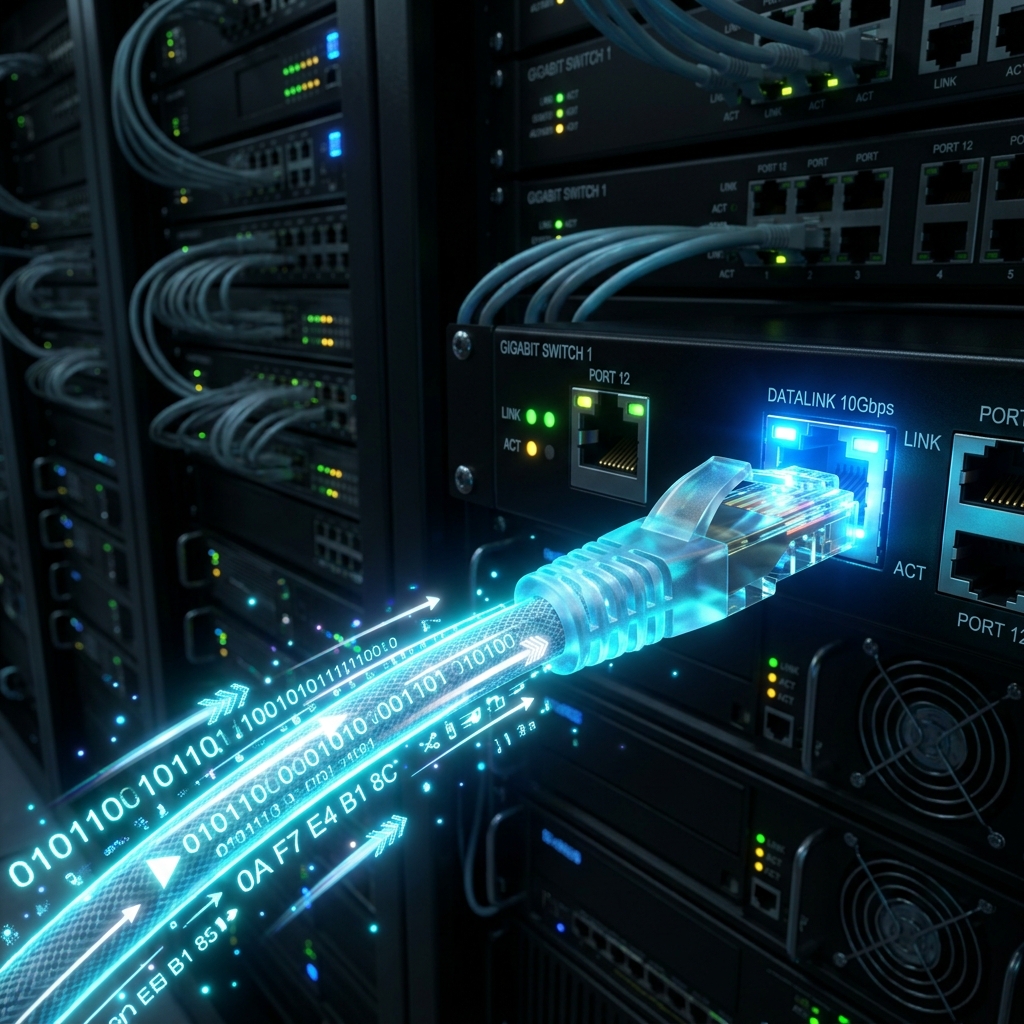
Wireless connections suffer from radio frequency interference, wall obstacles, and channel sharing. Even if your average ping on Wi-Fi is 30ms, packet drops and retries will cause jitter spikes. Switching to a wired Ethernet cable (Cat5e or Cat6) provides a dedicated path, dropping jitter below 1ms.
3. Optimize Network Adapter Settings
Open Device Manager on Windows, find your Ethernet Network Adapter, right-click and go to Properties -> Advanced. Disable features like "Energy Efficient Ethernet" and "Green Ethernet" to prevent the adapter from entering power-saving states, which introduces latency variance.
Verify Your Hardware Performance Now
Use our client-side diagnostic suite to test and calibrate your device inputs in real-time.